
Setup has two parts:
- Connect your Arbor organisation to your Bodyswaps account (one-time)
- Add content links for the activities you want to track
Before you start, you'll need:
- Bodyswaps App v3.5.4 or higher installed via the Arbor platform
- Admin access to both Bodyswaps Go and the ArborXR portal
Creating the connection
This only needs to be done once.
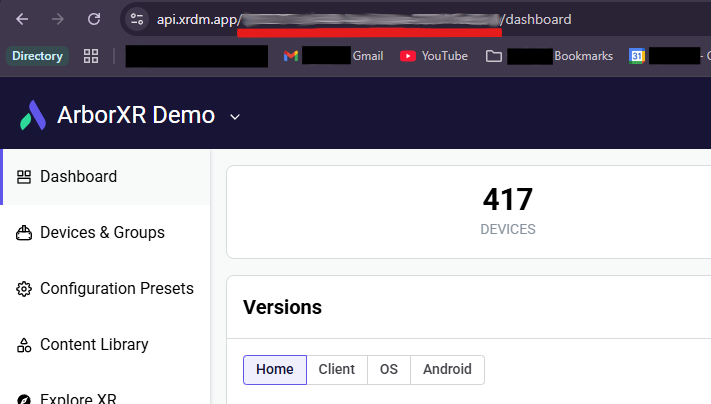
Log into the ArborXR portal and copy your Organisation ID from the URL — it's the string between api.xrdm.app/ and /dashboard:
https://api.xrdm.app/xxxxxxxx-xxxx-xxxx-xxxx-xxxxxxxxxxx/dashboard
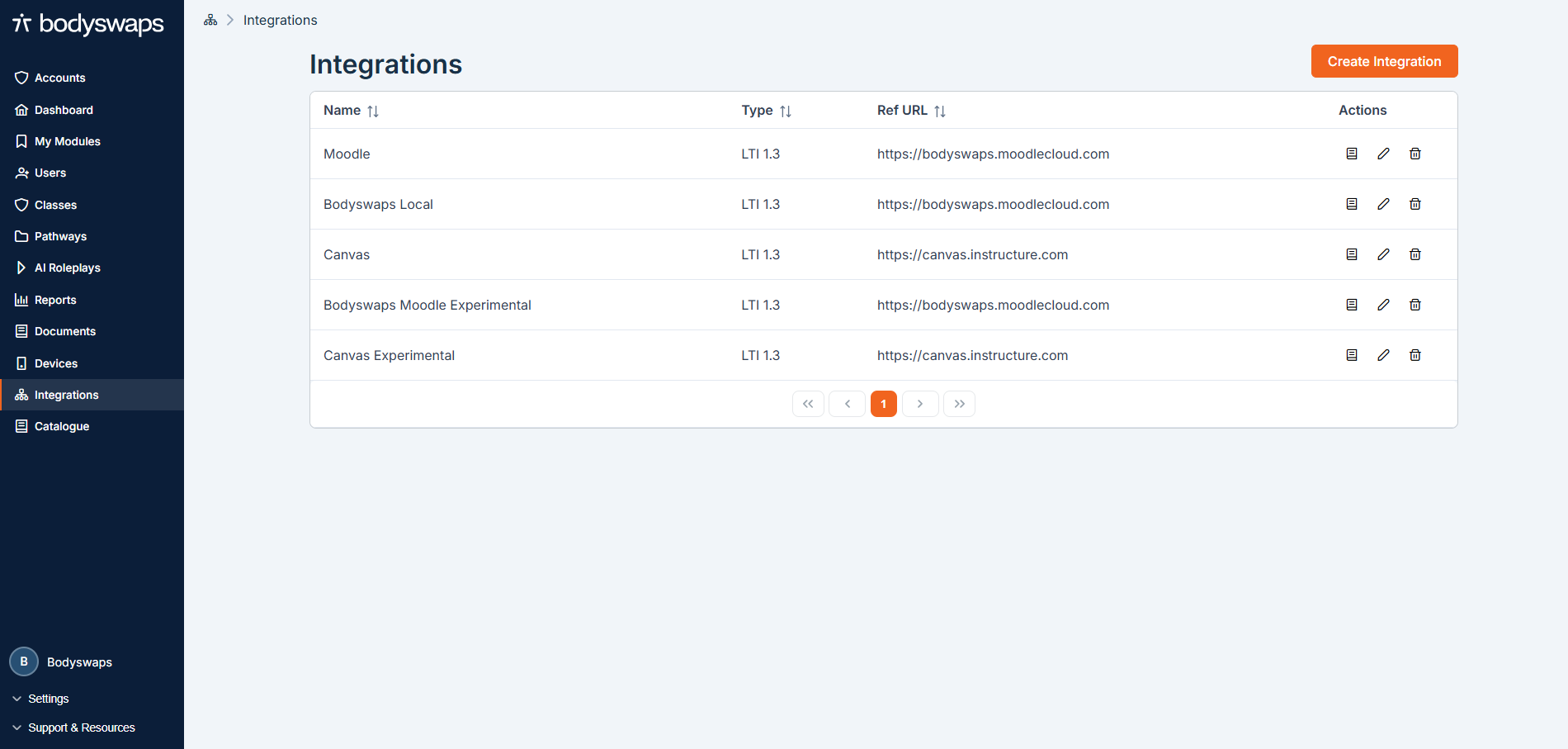
Log into Bodyswaps Go as an administrator and go to Integrations in the side panel.
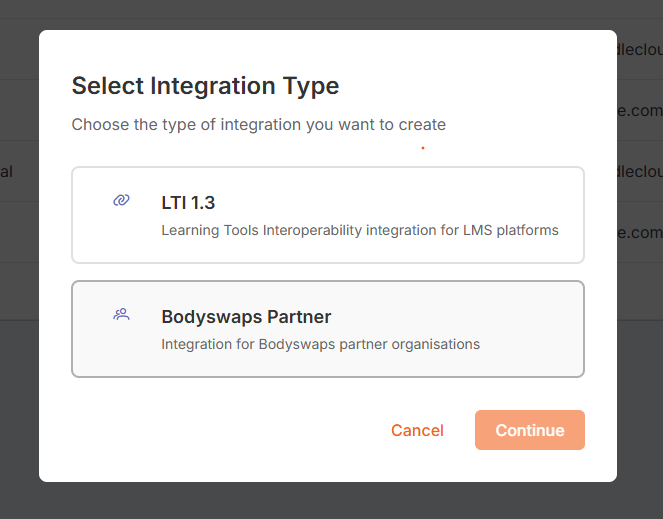
Click Create Integration and select Bodyswaps Partner.
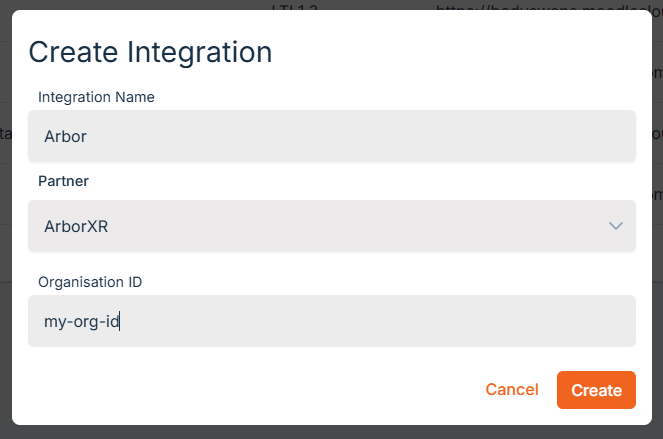
Give the integration a name, select ArborXR as the partner, and paste your Organisation ID into the final field. Click Create.
Linking to content
Once connected, you need to add a link for each piece of Bodyswaps content you want learners to access via their LMS. This step allows you to create the module target entries for the LMS Connections you will create after in your organization’s LMS.
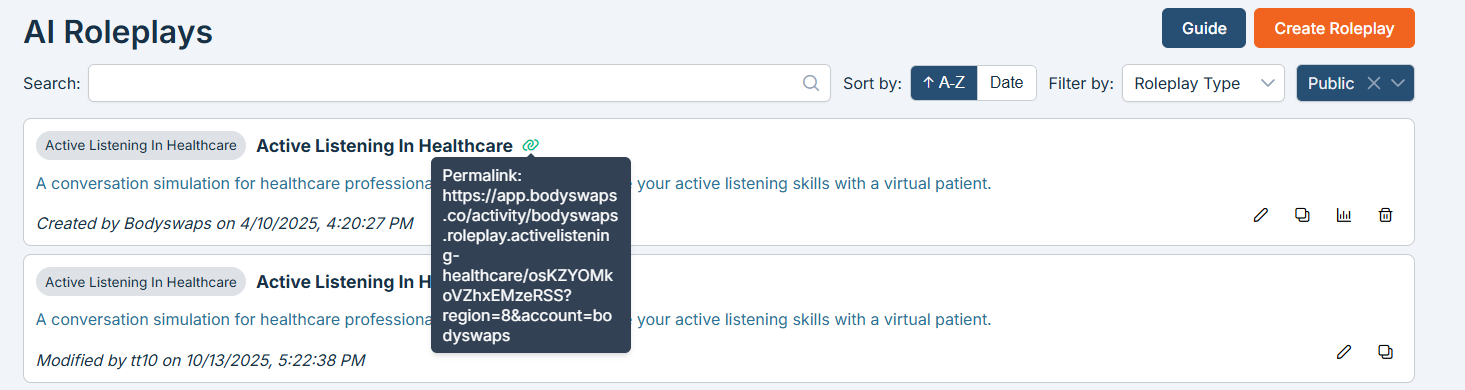
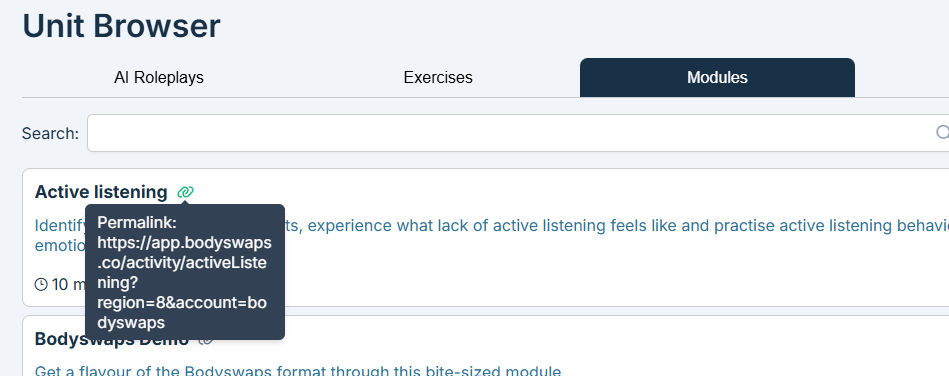
Step 1: Copy the content link from Bodyswaps Go
Links are available wherever you see the paperclip icon - in My Modules, AI Roleplays, or the Pathway Builder. Hover over the icon to preview the unique URL for that activity, then click it to copy the link to your clipboard.
📌 A dedicated content library page with all links in one place is coming soon.
Step 2: Add the link in Arbor
- In Arbor, find the Bodyswaps application in your Content Library.
- Open the Insights Hub tab.
- Open the Module Targets tab, then press “Click here” under the Custom modules section to add a new target and paste in the link from Bodyswaps Go as your Module ID.
- Set the Name of the Module Target to describe the module concisely, it is user facing.
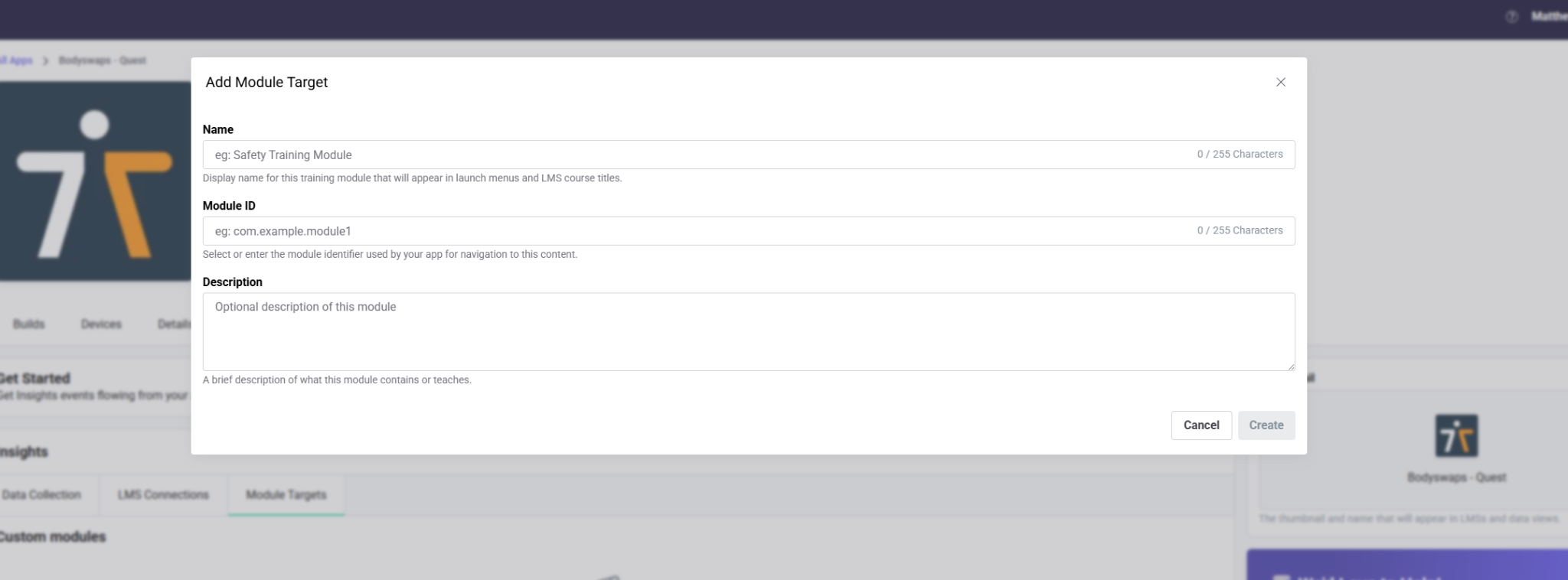
For more detail on Module Targets, see Arbor's help article. In short, once you create the module targets, you will be able to create LMS Connections referencing these entries. Follow the help article for steps on how to create an LMS Connection and add it to your organization’s LMS.
Troubleshooting
Progress isn't being tracked. Check that the app version installed on your Arbor devices is v3.5.4 or higher. Older versions don't support the Insights Integration.
The content link isn't working. Make sure you're copying the link using the paperclip icon in Bodyswaps Go - don't copy the URL directly from your browser address bar, as this won't be in the correct format.
Can't see the Integrations page in Bodyswaps Go This is only visible to administrators. Check your account role with your Bodyswaps account owner.