Table of Contents
- Overview
- Selecting a Presentation
- Previewing and Confirming Your Presentation
- Using Slides During the Simulation
Overview
When your facilitator assigns the Public Speaking roleplay with slide selection enabled, you'll be asked to choose a presentation before entering the simulation. You can select from shared presentations already available in your organisation, or — if your facilitator has enabled it — upload your own PDF slides.
Selecting a Presentation
Choosing a Global Presentation
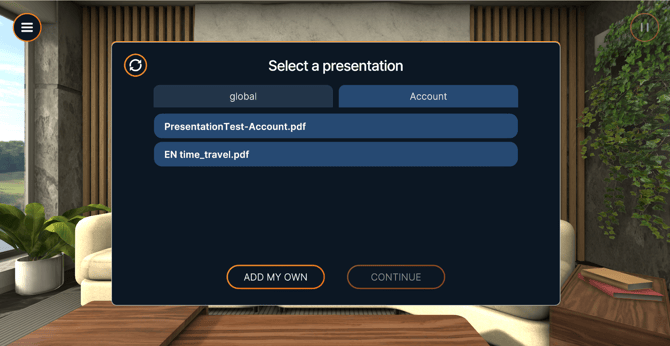
Global presentations are PDF slide decks available either from Bodyswaps' public file library or shared by someone within your organisation.
- On the presentation selection screen, browse the available slides under the Global tab.
- Select the presentation you want to use.
- Click Continue.
Uploading Your Own Slides
⚠️ This option is only available if your facilitator has enabled it. If you don't see the Add my own button, contact your facilitator.
You'll need access to a web browser to complete the upload. Only PDF files are accepted, and your file must be under 10 MB.
- On the presentation selection screen, click Add my own.
- Click Email me an upload link. You'll receive an email instantly at your registered address.
- Open the email and click Follow this link.
- You'll be taken to an upload page in your browser. Select and upload your PDF file.
- Return to the Bodyswaps app. Press the Refresh button in the top-left corner of the presentation selection screen.
- A User tab will now appear on the presentation selection screen. Open it, select your uploaded file, and click Continue.
⚠️ You have 24 hours to complete the upload from the moment you request the link. After that, you'll need to request a new one.
Previewing and Confirming Your Presentation
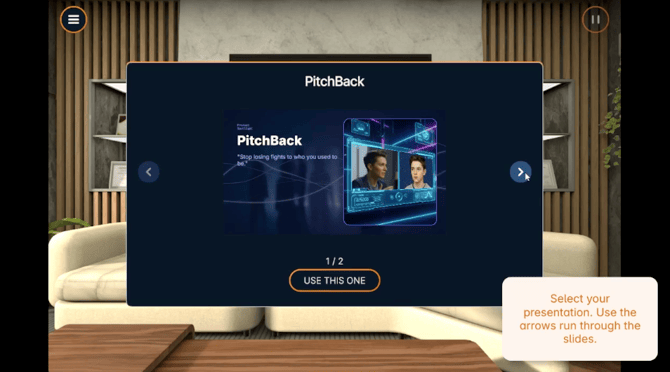
After selecting a presentation, you'll see a preview of your slides. Use this to confirm they're displaying correctly and that you've chosen the right file.
From here you can:
- Click Use this presentation to proceed
- Click Pick a different presentation to go back and choose again
Using Slides During the Simulation
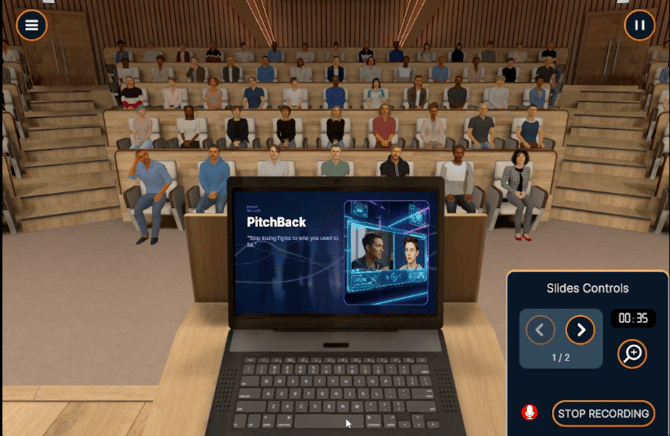
Once inside the simulation, your slides will appear in front of you alongside your audience (depending on the venue you selected).
- Press Start Recording to begin your presentation.
- Once recording starts, the slide controls panel will appear on the right-hand side.
- Use the slide controls to:
- Advance or go back through your slides
- Zoom in to enlarge the slides
- Stop recording when you've finished