
Requires app version 3.7+
Table of Contents
Overview
When building an AI Roleplay, you can now customize the avatar learners interact with and control what that avatar wears. You can also set the attire for the learner's own avatar so it matches the scenario you're building — for example, dressing learners in scrubs for a medical roleplay or formal for a customer service scenario.
Customizing the Roleplay Avatar
- Open the AI Roleplay customization form.
- Click Add Avatar.
- Select an avatar by clicking on it.
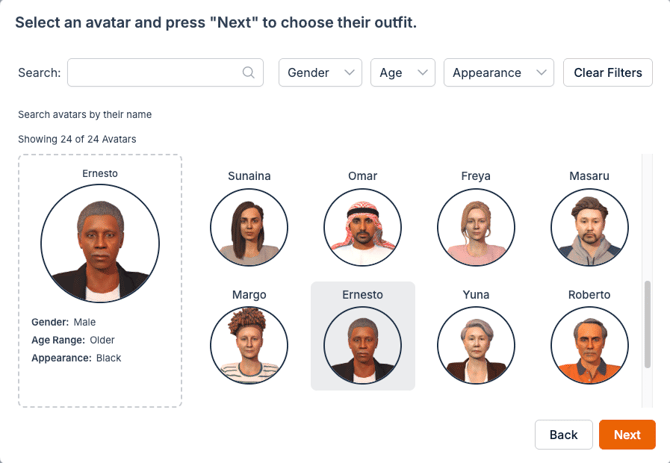
- Click Next.
- Select an outfit for the avatar.
-
- Use the Outfit Sets filters to narrow options by category, such as:
- Dental
- Formal
- Medical
- Casual
- Wellness
- Retail
- Use the Outfit Sets filters to narrow options by category, such as:
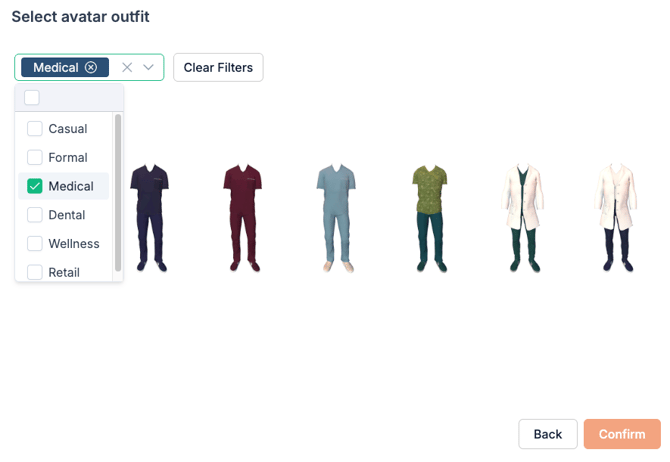
Setting Learner Avatar Attire
If you want the learner's avatar to match the scenario you're building, select an outfit theme for them as well:
- Casual
- Formal
- Medical
- Dental
- Wellness
- Retail
Selecting a theme changes the learner's avatar from their default attire to match the scenario.
⚠️ Note: If you select All, learners will be able to choose their own avatar's attire within the app instead of a fixed theme. See the learner guide: How to Select Your Avatar's Attire