Table of contents
- What you can export
- Exporting from the Reports page
- Exporting from the Organisation page (Administrators)
- Exporting class results (Coaches)
What you can export
Bodyswaps Go lets you export data as .xlsx files from two places, depending on what you need and your role:
- The Reports page — export any individual report (Administrators only).
- The Organisation page — export learner data, report raw data, transcripts, and quiz/questionnaire/survey results in bulk (Administrators only).
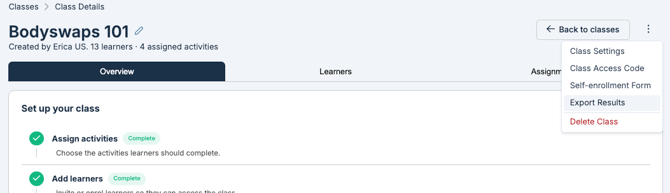
Coaches have a similar option, scoped to their own class, from the class view.
Exporting from the Reports page (Administrators)
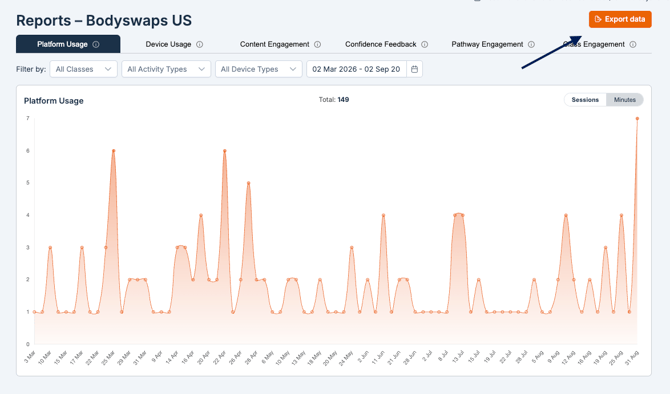
The Reports page includes the following reports:
- Platform usage
- Device usage
- Content engagement
- Confidence feedback
- Pathway engagement
- Class engagement
To export any of these:
- Go to the Reports area.
- Open the report you want to export.
- Select the export option to download the report as an .xlsx file.
For more on what each report shows, see Insights + Reports.
Exporting from the Organisation page (Administrators)
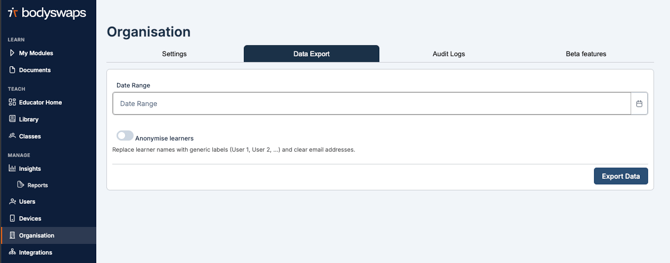
As an Administrator, you can export data in bulk for your whole organisation.
- Go to the Organisation page.
- Select Data Export tab.
- Choose the data types you want to include:
- Learners
- Activity data
- Learner report raw data
- Learner report transcripts
- Quiz and questionnaire results
- Survey results
- Select the date range you want the export to cover.
- Toggle on Anonymise learners if you don't want learner names included in the export.
- Select Export Data.
This downloads an .xlsx file containing the selected data.
Exporting class results (Coaches)
As a Coach, you can export the same fields as the Organisation export (learners, activity data, learner report raw data, learner report transcripts, quiz and questionnaire results, and survey results), but scoped to your own class only.
Unlike the Organisation export, the class export:
- Always covers the entire class — there's no date range selection.
To export your class results:
- Navigate to the class you want to export results for.
- Select the three dots menu in the top-right corner.
- Select Export Results.
This downloads an .xlsx file of the data related to that class.