⚠️ Known issue: We're aware of this bug and a fix is in progress. Use one of the workarounds below in the meantime.
What's happening
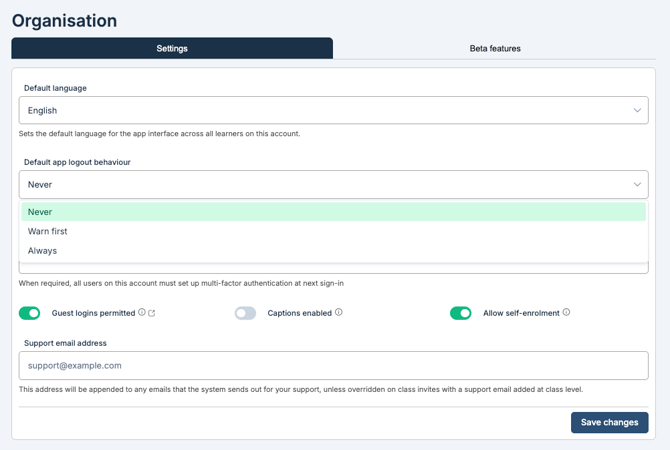
This affects all platforms. If a learner joins a class using a class code, and the Default app logout behaviour setting is set to Always or Warn first, the app can get stuck after they select their avatar — it doesn't progress to the roleplay.
This does not affect learners who join via an invitation email or a self-enrollment link (see workarounds below).
Workaround 1: Send learner invitations
If the learner has already been added to the class, send them an individual invitation instead of the shared class code:
- Navigate to the class.
- Go to Learners.
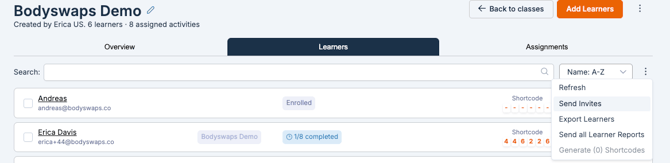
- Select the three dots next to the class (or learner list).
- Click Send invites.
- The learner receives an email, selects the link, and generates their own individual learner code.
Workaround 2: Generate an individual code yourself
As a facilitator, you can generate a learner's code directly:
- Navigate to the class and find the learner in the list.
- Select the icon shaped like a skeleton key next to their name.
- This generates an individual code for that learner to use instead of the shared class code.

Workaround 3: Use the self-enrollment link
For learners who haven't been added to the class yet:
- Navigate to the class.
- Select the three dots at the top of the page.
- Click Self-enrollment Form.
- Share the QR code or the link with learners.
- Learners enter their name and email, then generate their own individual code.
Workaround 4: Change the logout setting
You can also work around this by changing Default app logout behaviour to Never.
⚠️ Before you do this: setting logout behaviour to Never means the app will not automatically sign a learner out when they finish. If learners are using a shared or classroom device, you must make sure each learner manually signs out after completing their training. If they don't, the next person to use that device can land in the previous learner's active session. Only use this option if you can reliably enforce manual sign-out, or if devices are 1:1 (not shared).