
Contents
- What is AI Coach?
- Enabling AI Coach
- Configuring your questions
- Skip and submission settings
- Viewing transcripts
What is AI Coach?
AI Coach is an optional post-roleplay feature that invites learners into a short, voice-based reflection session with a virtual coach. The learner chooses their coach and demeanour, then answers five questions in a neutral virtual space.
The questions are yours — you write them during customisation. AI Coach handles the rest.
🆕 AI Coach is available on all roleplay templates. Requires version 3.6 or later.
Enabling AI Coach
AI Coach is configured inside your roleplay customisation settings.
- Open the relevant roleplay template in your Bodyswaps dashboard
- Navigate to the AI Coach section
- Toggle AI Coach on
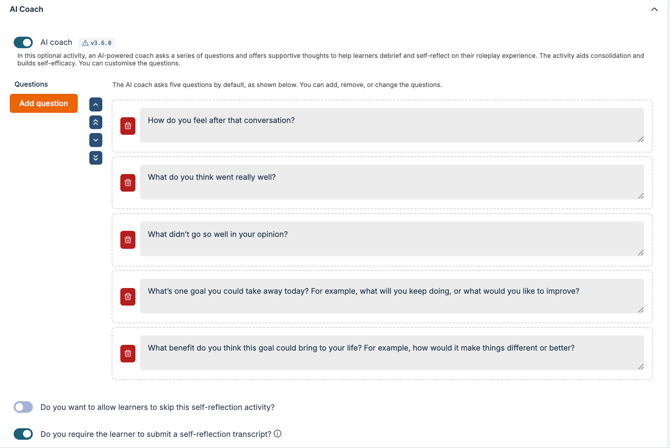
Configuring your questions
When you enable AI Coach, you'll find a pre-populated set of reflection questions. These are editable — treat them as a starting point, not a fixed template.
To manage your questions:
- Edit a question — select the question field and type your changes
- Add a question — use the add button to create a new question
- Remove a question — use the bin icon next to any question to delete it
⚠️ Learners will be asked the exact questions you create. Make sure your question list reflects what you want to cover.
Skip and submission settings
Within the AI Coach section, you have two additional toggles:
Allow learners to skip AI Coach
- Toggle on — learners can choose to bypass the coaching session entirely after the roleplay
- Toggle off — learners must engage with AI Coach before they can exit
Require transcript submission
- Toggle on — learners must submit their transcript before exiting. They can still choose to retry the roleplay or AI Coach first, but cannot leave without submitting
- Toggle off (default) — submission is optional. Learners choose whether to submit at the end of their session
Viewing transcripts
When a learner submits a transcript, it will be included as part of their Learner Report, which can be found in two ways:
- The learner receives the Learner Report by email after their session
- The Learner Report appears in the class view in your Bodyswaps dashboard — but only if the session was played within a class
⚠️ Learner Reports are not visible to administrators for sessions played outside of a class. If reporting matters to you, make sure learners are assigned to a class before they begin.
Directions and information for learners can be found in our Meeting Your AI Coach article.