
Before reviewing these steps, ensure you have a self-enrollment link/QR code or class invitation.
Table of contents
Choose your path
There are two ways to access your assigned Bodyswaps content:
- Browser — quickest option, no download needed. PC or Mac only (not phone or tablet).
- App — works on more devices, requires a one-time download and install.
Path A: Use your browser
Available on a PC or Mac browser only. Not suitable for browser use on a phone or tablet.
Works best on: Google Chrome, Microsoft Edge, Firefox, or Safari.
- Open the join link or enter your code as instructed by your facilitator.
- Select your speakers and microphone.
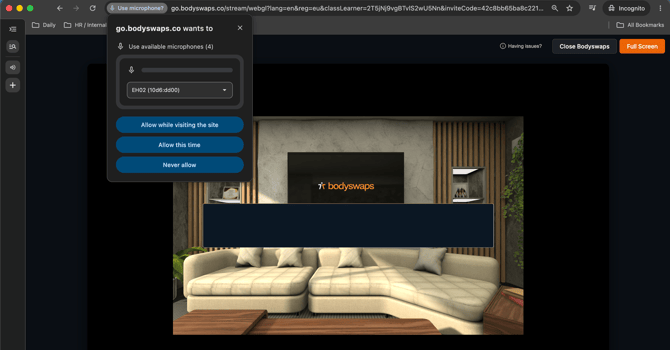
Go full-screen
Select the full-screen button at the top right of the page.
Exiting a browser session
- Select Leave Module.
- Close the Bodyswaps browser tab.
Browser troubleshooting
To avoid needing to switch to streaming, make sure your device meets our technical requirements before you start.
If you do run into errors while using the browser version:
- Select the "Having trouble" button at the top of the screen.
- This switches you to streaming, a lower-bandwidth alternative.
⚠️ Switching to streaming does not preserve your progress. If you were in the middle of a unit or interaction, you'll need to start that interaction again from the beginning after switching.
Path B: Download and use the app
- Go to the Downloads page to find the installer for your device.
- Download and run the installer.
- Open the Bodyswaps app once installed.
- Accept the EULA and any permissions requests (e.g. camera, microphone).
- On the Welcome screen, enter your 6-digit code using the on-screen keypad.
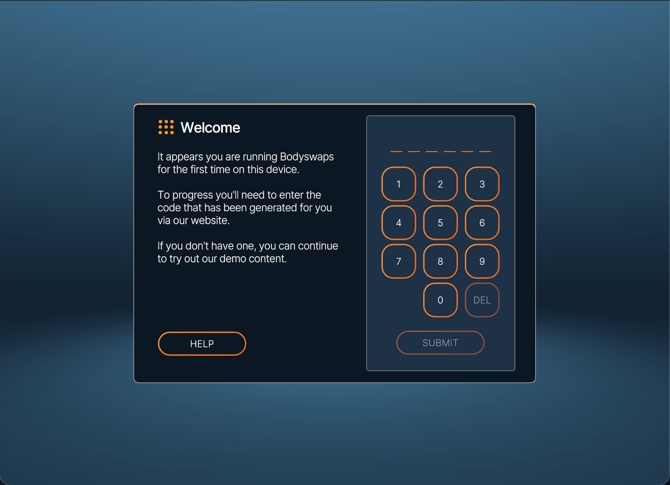
⚠️ Using a shared device? Click the menu at the top left and select your user profile to confirm you're signed in as yourself. If you're not signed in, select the 9 dots at the top right — this same icon is also used to reach code entry from the Virtual Training Centre screen.