
Table of Contents
- Accessing Administration Settings
- Default Language
- Default App Logout Behaviour
- Multifactor Authentication (MFA)
- Guest Logins
- Captions
- Self-Enrollment
- Support Email Address
To access, you must be an account administrator.
Accessing Administration Settings
The Organisation tab is found within Settings in Bodyswaps Go.
- Log in to Bodyswaps Go as an account administrator.
- Click Organisation.
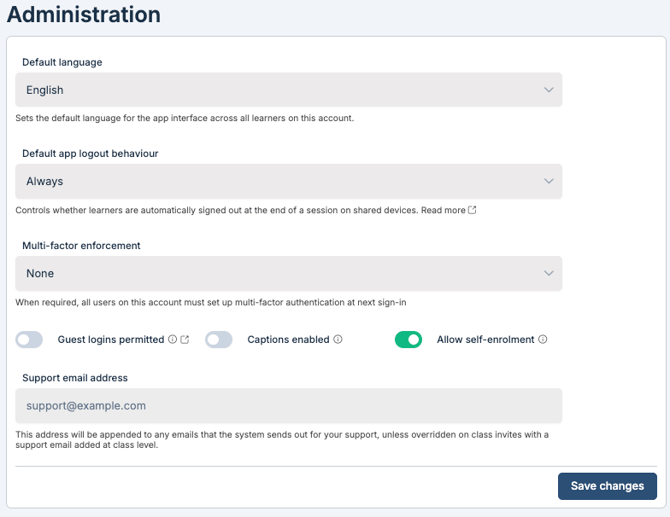
Default Language
Sets the language all users on the account will experience in the app.
- Under Default Language, click the language dropdown.
- Select your preferred language.
- Save your changes.
Note: This sets the default for all users on the account. Individual users may be able to override this depending on their settings.
Default App Logout Behaviour
Controls how and when users are logged out of the app.
For a full explanation of the available options, see Default App Logout Behaviour.
Multifactor Authentication (MFA)
Requiring MFA adds a second verification step for all users on the account at login. For more deails, see MFA
To enable MFA:
- Locate Require Multifactor Authentication.
- Toggle it on.
Once enabled, MFA applies to all users on the account.
⚠️ Warning: Enabling MFA will affect all users on the account immediately. Ensure your users are aware before enabling this setting.
Guest Logins
Guest logins allow anonymous users to access Bodyswaps without a named account. Each guest user session consumes a license.
To enable Guest Logins:
- Locate Guest Logins.
- Toggle it on.
Once enabled, a Guest User Sign In option will appear on the code page and can also be enabled at class level.
⚠️ Warning: Each guest user session consumes a license from your account. Monitor usage carefully if your license count is limited.
Captions
Enabling captions turns on closed captions for all users across the app.
To enable Captions:
- Locate Captions.
- Toggle it on.
Once enabled, captions will be active for all users on the account.
Self-Enrollment
Self-enrollment allows learners to join a class without an admin invitation, using a class self-enrollment link or QR code. This setting is toggled on by default.
To disable Self-Enrollment:
- Locate Allow Self-Enrollment.
- Toggle it off.
For more on how self-enrollment links and QR codes work, see Self-Enrollment.
Support Email Address
Adding a support email address means it will appear at the end of any emails sent by the Bodyswaps system, giving your learners a direct contact point for support.
To add a support email:
- Locate Support Email Address.
- Enter your support contact email address.
- Save your changes.